
Regular updates keep your control panel running smoothly, securely, and efficiently. By keeping ispmanager up to date, you benefit from:
→ New features that improve functionality,
→ Performance improvements for a better user experience,
→ Bug fixes to resolve issues, and
→ Adjustments to working methods to stay aligned with evolving technology.
ispmanager publishes beta releases every two weeks. Although labeled “beta,” these releases undergo extensive testing and are safe to use. Stable releases are published monthly. You can follow planned and completed changes on the Changelog page.
You can configure ispmanager to update automatically (the default) or to update manually. Below we explain how each method works and what to check before updating.
Checks to Perform Before Updating
Before updating ispmanager, it’s important to check a few items to avoid errors and ensure a smooth upgrade. Problems such as an unsupported or outdated operating system, conflicting repositories, or mismatched update settings can cause failures. Take these preparatory steps:
1. Make Sure Your Operating System Is Supported
ispmanager supports the following operating systems:
✅ AlmaLinux: 8, 9
✅ Debian: 11, 12
✅ Ubuntu: 20.04, 22.04 (recommended), 24.04
✅ Rocky Linux: 8
✅ CloudLinux OS SHARED
To check which operating system your server runs, use the command shown in the image below.

If your operating system is unsupported or out of date, consider upgrading the OS before updating ispmanager.
2. Disable Third-Party Repositories
Some software repositories—especially third-party ones—may conflict with ispmanager updates. It’s best to disable them before proceeding. Typical repository locations are listed in the table below.
| 📂 AlmaLinux | /etc/yum.repos.d/ (contains all repo files) |
| 📂 Debian/Ubuntu | /etc/apt/sources.list (main system repos) and /etc/apt/sources.list.d/ (additional repos, including ispmanager files) |
Also make sure the ispmanager repository URL is correct; if updates fail, double-check this address and confirm it hasn’t been changed.

If updates fail, verify this URL carefully.
3. Verify the Update Channel and Panel Version Match
Updates will not work if the repository’s update channel and the control panel’s channel mismatch. For example, if the repository file (repo.version) indicates “stable” but your panel shows “beta,” updates may fail.
Check your panel version from the control panel’s “Software Information” section or from the Help area. Panel version details are displayed at the bottom of that page.
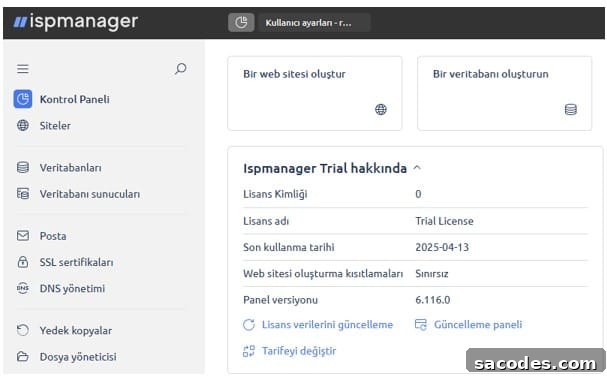
Refer to the official documentation for more details about update channels and versions.
4. How ispmanager Updates Automatically
Automatic updates save time by keeping ispmanager current without manual intervention. A cron job checks for updates once a day and installs them if available.
To enable automatic updates:
- Log in to the control panel as root,
- Navigate to the administration or system settings area.
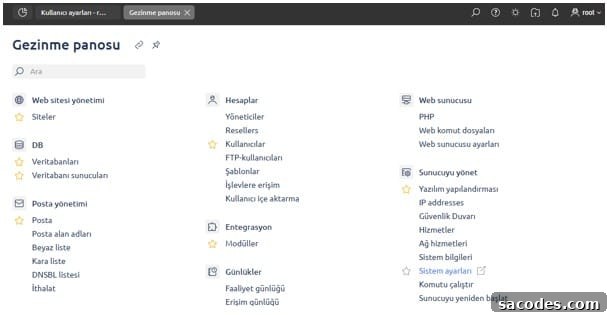
Locate the option labeled “Automatically update software.” You can choose either to:
- Update only ispmanager packages (packages from the ispmanager repository), or
- Update all system packages (including those from third-party repositories).
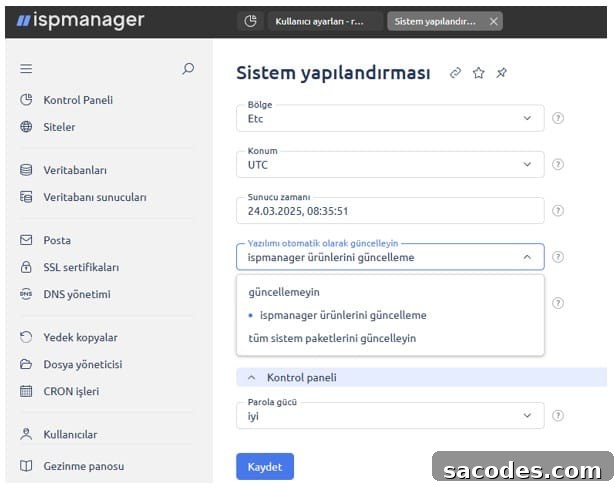
Select the appropriate option and click “Save.” You can check the control panel version from the Help section or by using the command shown in the image below.

Automatic updates are enabled by default, but it’s a good idea to confirm the setting. Keep in mind these updates may conflict with other scheduled server tasks such as backups; if necessary, you can disable automatic updates temporarily.

5. How to Update ispmanager Manually
There are situations where manual updates are preferable—for example, when you want to test a new release in a staging environment before applying it to production. Manual updates also help prevent unexpected downtime.
To update manually:
- Connect to the server via SSH as the root user,
- Run the update command shown in the image below.

After the update completes, the terminal will display a message indicating how many packages were updated. Verify the control panel version via the panel or with the command shown in the next image.

6. Automatic vs. Manual Updates: Which Is Best?
Both update methods have advantages and drawbacks. The right choice depends on your setup, risk tolerance, and workflow.

If your installation is fairly standard and you trust ispmanager’s default configurations, automatic updates are a convenient and generally safe option. If you use third-party modules, custom scripts, or legacy software, manual updates let you validate changes before they reach production.
For additional assistance with updates, consult the official ispmanager documentation and support resources available in your panel.