

Backups are essential for protecting your data and allow you to recover websites, databases, mail, and server settings when something goes wrong. ispmanager creates backups of sites, databases, mail, and server configurations so you can restore important data and avoid being caught unprepared in cases such as operational site failures, server migrations, hardware faults, or software problems.
Common scenarios covered by backups:
- Issues affecting a website’s functionality
- Moving from one server to another
- Hardware failures, software crashes, or other server incidents
Backup Types in ispmanager

ispmanager supports both full and incremental (differential) backups. This hybrid approach reduces the load on the service while ensuring reliable recovery options. Backups are stored in compressed archives to optimize storage space and performance.
- Full backups
A full backup contains all user data. It is created during the initial backup process and then runs on the scheduled day (by default, the current day). - Incremental backups
Incremental backups store only the changes made since the last full backup. They are faster to create and require less storage space than full backups.
You can exclude specific files or folders from backups—for example, panel logs are typically excluded by default to avoid unnecessary bloat.
Storage Options in ispmanager

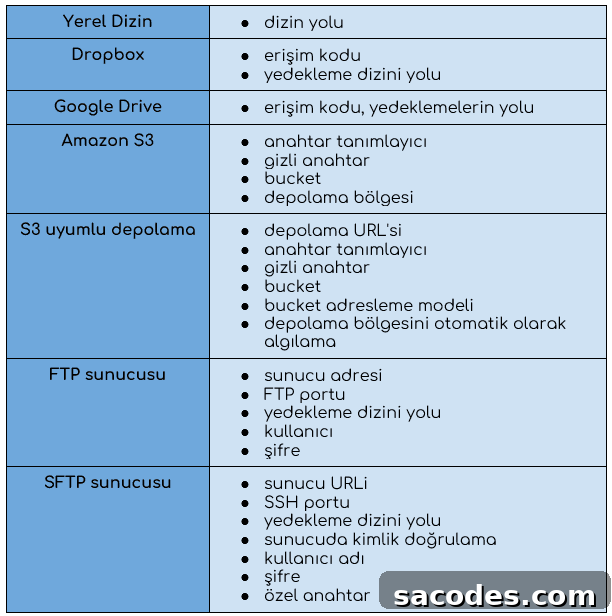
Backups can be stored either on the local server or on remote storage (including various cloud services). Available storage types you can configure in ispmanager include:
- FTP
- S3-compatible storage
- SFTP (SSH)
- Amazon S3
- Dropbox
- Google Drive
- An external or separately mounted hard drive
Using remote storage provides protection against local hardware failures. When configuring SFTP storage, make sure both the ispmanager server and the remote storage host run up-to-date operating system versions; older OS releases may not support modern security protocols and can block connections. Also verify that the remote server supports proper authentication and encryption.
ispmanager offers options to enable backup encryption, based on the OpenSSL library. It is a good practice to enable encryption for remote storage such as Dropbox, Amazon S3, FTP, or SFTP to protect sensitive data during transit and at rest.
How to Create a Backup in ispmanager
To create backups in ispmanager, follow these general steps:
- Open the “Backup Copies” section. If this is your first time, ispmanager will prompt you to configure backups.
- Click “Create Backup” and choose the storage type you want to use.
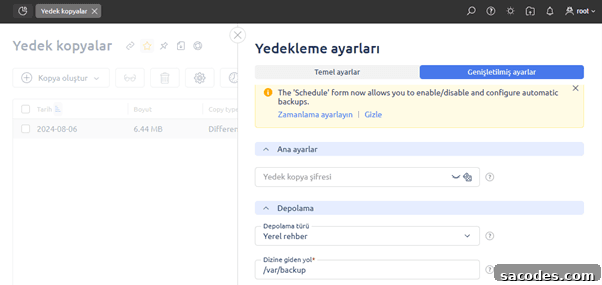
Next, provide the configuration settings for the selected storage option and set the desired limits and exclusions. Specify:
- Disk space limits for backups so older backups are removed automatically when the limit is reached,
- How many full and incremental backups to retain,
- Any files or databases to exclude from backups.
Advanced settings let you schedule the backup start time according to the server clock and enable archive encryption with a backup password.
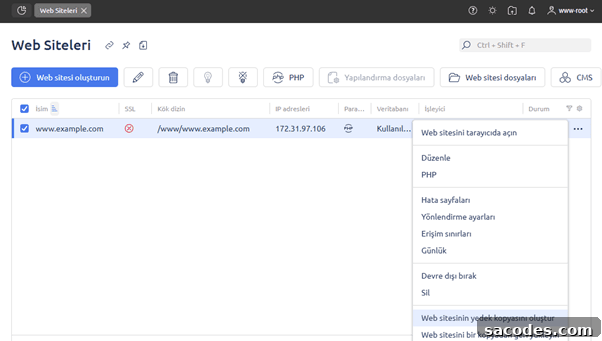
To back up a single site:
- Go to the Sites section and select the desired site.
- Click the icon with three dots at the end of the row.
- Choose “Create backup copy of the website.”
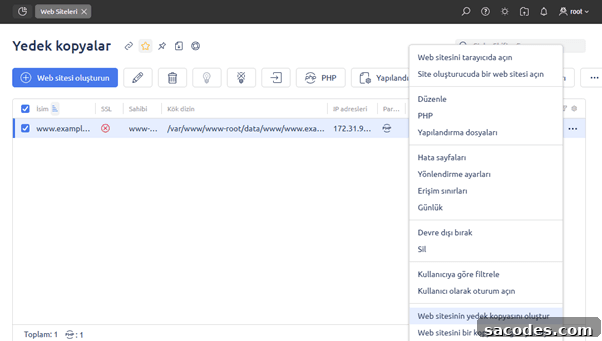
You can download the backup copy to your computer or save it to the site’s home directory.
How to Restore Backups in ispmanager
ispmanager allows you to restore an entire server, a single site, or individual files from backups.
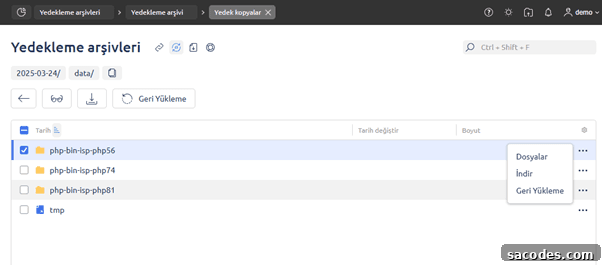
To restore user data:
- Open the Backups section and choose the backup archive that contains the data you need,
- Click the three dots on the right and select “Restore.”
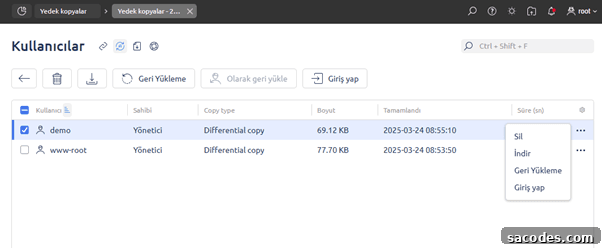
To restore a single file from a backup:
- Select the backup by its saved date,
- Choose the user and log in as that user,
- In the backup section, select the file you need and restore it.
To restore a single website:
- Locate the site in the Websites section,
- Click the three dots and choose “Restore website from a copy.”
Best Practices and Recommendations for ispmanager Backups
Enable backups as soon as you install ispmanager so you have a safety net in case of unexpected problems. To keep backups reliable and efficient, consider the following recommendations:
- Ensure the combined size of backup volumes does not exceed available disk space.
- Set storage volume limits because some storage services may not report used space accurately.
- Schedule backups during off-peak hours to minimize server load.
- Regularly check the Notifications section for backup-related errors.
- Customize backup timing in the Backup Copies section using the “Scheduling” option.
- Protect sensitive data by enabling encryption for stored archives.
Additional resources and support
|
For detailed guidance on ispmanager’s backup system, consult the official documentation and knowledge base, or contact support if you require specialized assistance. |