

The digital era has given us many conveniences, and social media platforms stand out as places where people gather to share experiences, memories, thoughts, and feelings. Among these platforms, Instagram—centered on photos and videos—has grown enormously in popularity in recent years. Millions of users access it daily, yet sometimes individuals choose to step away temporarily or permanently for personal or professional reasons. Whether you want a digital detox for a while, hide your profile, or delete your account entirely, Instagram offers clear options. What are those options? How can you delete or deactivate your Instagram account? This article explains, step by step, how to remove or temporarily disable your Instagram account and what to expect from each choice.
How to Permanently Delete Your Instagram Account
Using a Web Browser
Permanently deleting an Instagram account must be done through a web browser—either on desktop or mobile—because the mobile app does not support account deletion. Follow these steps:
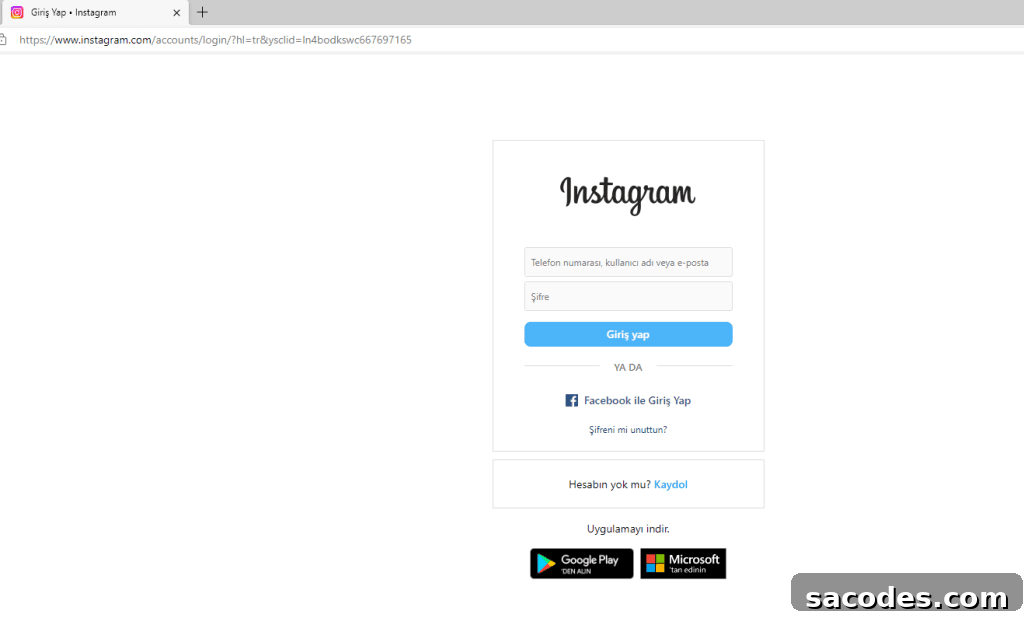
- Open your preferred web browser and go to Instagram’s website.
- Log in to the account you want to delete.
- Visit the account deletion page on Instagram: https://www.instagram.com/accounts/remove/request/permanent/.
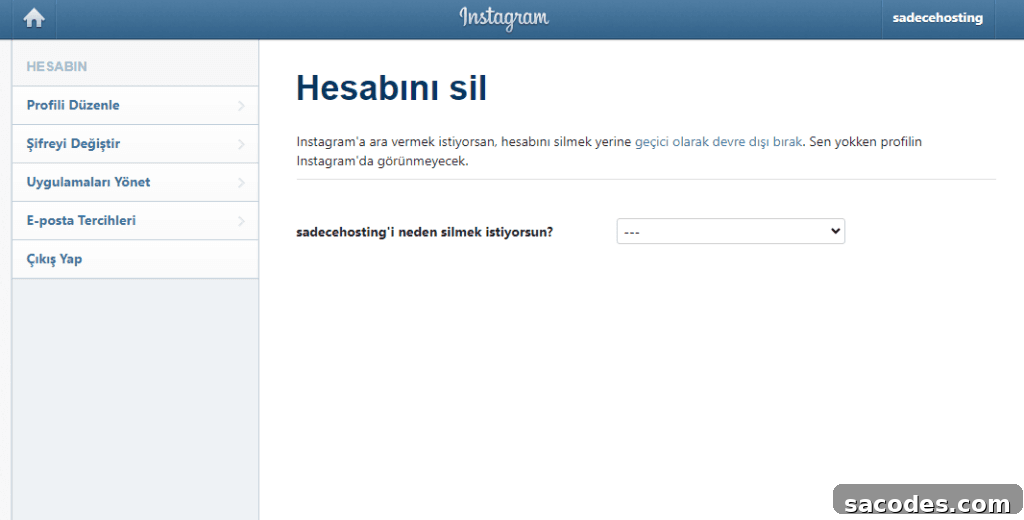
- On the deletion page, select a reason for leaving from the menu. After choosing a reason, you will be asked to re-enter your password to confirm.
- Finally, click the button labeled “Permanently delete my account” to complete the process.
Consequences of Permanently Deleting Your Account
- All your photos, comments, likes, and other data will be permanently removed and cannot be restored.
- You will not be able to sign up again with the same username or re-register with the same email address associated with the deleted account.
How to Temporarily Disable (Deactivate) Your Instagram Account
Using a Web Browser
If you don’t want to permanently delete your account but need a break, you can temporarily disable it. This option hides your profile and content until you choose to return. Steps:
- Open a web browser and go to Instagram’s website, then log in to the account you want to disable.
- Go to your profile page and click “Edit Profile.”
- Scroll down and click the link labeled “Temporarily disable my account.”
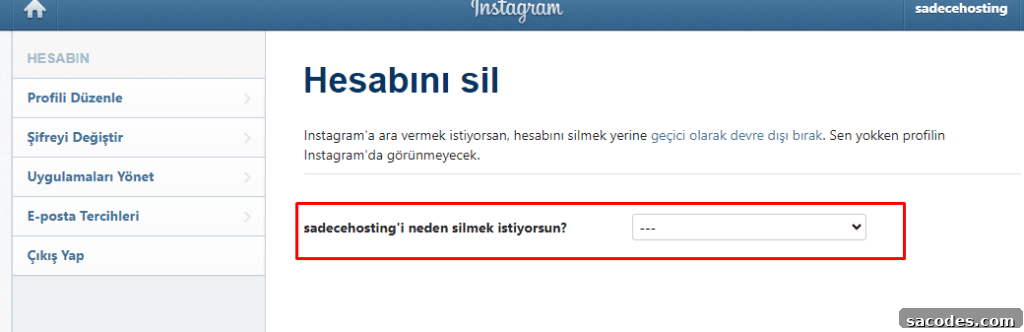
- Select a reason for disabling the account from the dropdown, then re-enter your password to confirm.
- Click “Temporarily disable account” to complete the deactivation.
What Happens When You Temporarily Disable Your Account
- Your profile, photos, comments, and likes will be hidden from other users while the account is disabled.
- To restore your account, simply log back in with your username and password—your content will reappear.
Important Notes and Best Practices
- The deletion or deactivation processes cannot be completed through the Instagram mobile app—you must use a web browser.
- Choose carefully: permanent deletion is irreversible. If you think you may return, temporary deactivation is a safer option.
- If you delete your account and later regret it, you will not be able to recover the same username or data.
- Before deleting, consider downloading a copy of your Instagram data (photos, comments, and profile information) from your account settings so you retain a personal backup.
In summary, Instagram provides two main pathways for stepping away from the platform: permanent deletion and temporary deactivation. Deletion removes all content and access permanently, while deactivation hides your account and can be reversed by logging back in. Assess your needs and consequences before acting—both options are straightforward when performed through a web browser.