
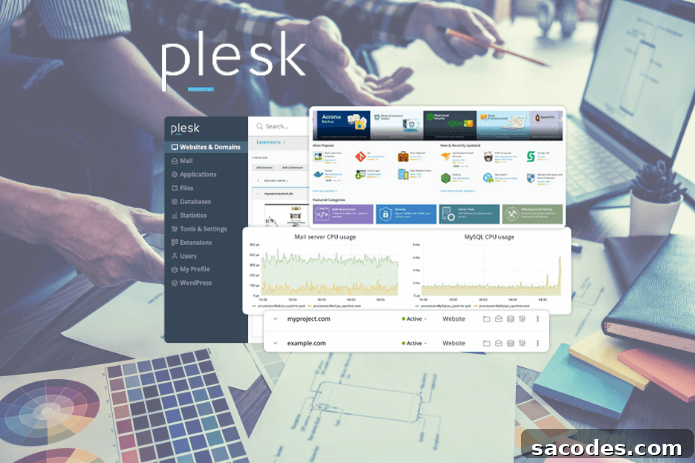
Today, a successful website requires more than an attractive design and quality content. Regular maintenance tasks such as backups, security checks, log rotation and updates must be performed on a schedule. This is where Cron Jobs come in. Cron Jobs are scheduled tasks that run automatically at specific times or intervals. Plesk Panel provides a user-friendly interface to manage these scheduled tasks. In this article, we explain how to effectively create and manage Cron Jobs in Plesk Panel, step by step, and outline practical tips to keep your site stable and secure.
What Is a Cron Job?
Cron Job refers to a scheduling utility native to Unix-like systems that automates repetitive tasks by running commands or scripts at defined times. The name comes from the cron daemon, which checks scheduling rules and executes tasks accordingly. Cron jobs are commonly used for database backups, clearing temporary files, sending reports, running maintenance scripts, and other repetitive operations.
A typical Cron Job invokes a script, runs a command, or requests a URL at a scheduled interval such as every minute, hourly, daily, weekly, or monthly. Automating these tasks reduces human error, saves time and ensures consistency across systems.
1. Log in to Plesk Panel
Open your web browser and navigate to your Plesk Panel URL. Enter your username and password to sign in. From the dashboard you can manage domains, files, databases and scheduled tasks. Ensure you have the necessary permissions to create or modify scheduled tasks for the account you are using.
2. Adding a Cron Job
In the Plesk Panel dashboard look for the “Scheduled Tasks” or “Tasks” section. Click that section and choose the option to add a new scheduled task. The interface will guide you through naming the task, setting the schedule, and defining the command or script to run.
3. Define the Task
When creating a new Cron Job, give the task a clear, descriptive name and short description. This makes future management and troubleshooting easier. Specify what the task does—whether it runs a shell script, triggers a PHP script, calls a URL, or executes system commands—and include any necessary parameters. Be explicit about required user permissions and the working directory if the task depends on relative paths.
4. Schedule and Frequency
Choose the timing for your Cron Job. Plesk Panel offers scheduling fields for minutes, hours, day of month, month, and day of week, allowing granular control over execution times. Common schedules include nightly backups, hourly log rotations, and weekly updates. Select frequencies that balance operational needs and server load—avoid scheduling heavy tasks during peak traffic times.
5. Specify Commands and Environment
Each Cron Job runs one or more commands. Use absolute paths to executables and scripts, and ensure scripts are executable. If your task needs environment variables, set them explicitly or call a wrapper script that prepares the environment. Test commands manually before scheduling to confirm they behave as expected. Consider using curl or wget to call internal endpoints when a web-accessible script is necessary, but avoid exposing sensitive actions via public URLs.
6. Save, Activate and Monitor
After configuring the task, click “Save” or “Apply” to activate it. Once active, monitor the first few runs to confirm correct behavior. Check logs and output to detect errors or unexpected results. Plesk Panel can show execution logs or send notifications—enable these so you are alerted if a task fails. Periodically review scheduled tasks to remove obsolete jobs and adjust timing as your needs evolve.
Best Practices and Advantages of Cron Jobs
- Automated Management: Automating repetitive tasks reduces manual workload and ensures consistent execution.
- Time and Resource Savings: Scheduled tasks free administrators to focus on higher-value work while minimizing human error.
- Regular Maintenance and Security: Automated backups, updates and scans help maintain site integrity and reduce risk.
- Flexibility and Customization: Cron jobs can be tailored to your needs—run multiple tasks at different intervals, combine commands, or sequence operations via wrapper scripts.
- Monitoring and Control: Use logging and notification options to track success or failure and intervene when necessary.
- Performance and Reliability: Routine maintenance such as cache clearing, database optimization and log rotation improves overall performance for users.
In addition to these benefits, follow practical precautions: test commands before scheduling, use full paths, restrict permissions to the minimal necessary user, enable logging and email notifications, and avoid embedding plain credentials in scripts. By adopting these practices and leveraging the Plesk Panel scheduled tasks interface, you can automate essential maintenance, improve uptime, and streamline operations for your website or application.
Regular maintenance and automated tasks play a vital role in protecting performance and security. Use the Plesk Panel Cron Job management features to schedule backups, updates and housekeeping tasks, and keep your site running smoothly and reliably.