

When managing a hosting environment, it’s essential to grant users varying levels of access. Some people need full control, while others should only manage websites, email accounts, or certain services. Assigning the correct permissions improves both security and operational efficiency.
The ispmanager control panel organizes accounts into distinct user levels (four primary levels, or five if you include superuser administrators). It also provides templates that let you create multiple users with the same permissions in just a few clicks, which is useful for standardizing hosting plans or delegating responsibilities.
This guide explains how to create and manage user accounts in ispmanager, customize permissions, and control access to specific functions. It walks through practical steps for adding administrators, resellers, and end users, using templates to speed up provisioning, and managing access to features and settings. For licensing details you can check the ispmanager link included in the original panel.
ispmanager User Levels Hierarchy
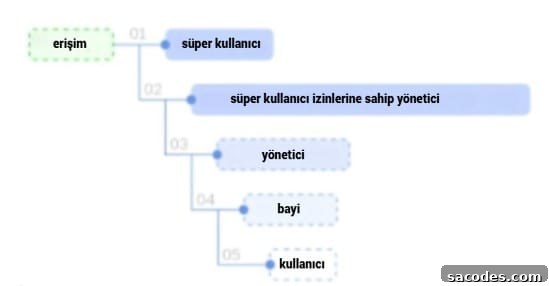
Here is a quick overview of ispmanager user levels and their permissions. Each level has default access to a specific set of functions and settings. Refer to ispmanager documentation for a complete list of default capabilities and for any version-specific differences.

You can verify the default availability of features for each level in the official documentation if you need granular details or are planning a complex access scheme.
How to Create an Admin, Reseller, and User
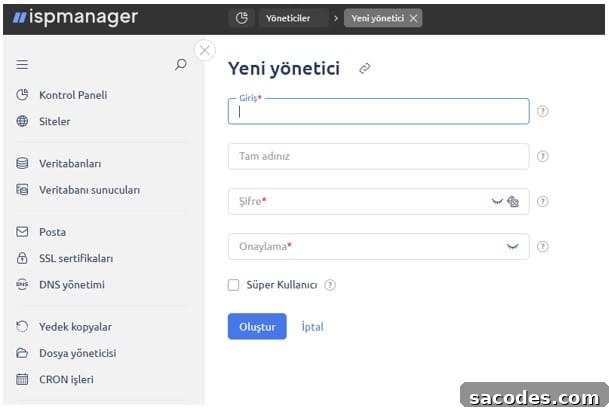
To add a new administrator in ispmanager, follow these steps:
→ Log in to ispmanager with superuser privileges.
→ Open the navigation panel and go to “Administrators.”
→ Click “Create administrator” and complete the required fields.
→ If the new administrator requires full control, check the “Superuser” box.
→ Click “Create” to finalize the account.
Once created, administrators can be edited, enabled/disabled, removed, or assigned specific permissions.
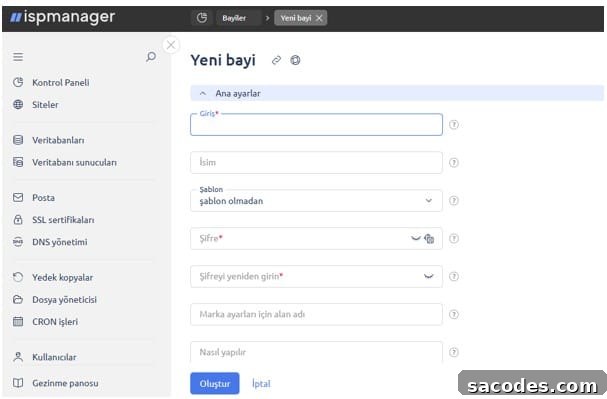
Creating a reseller follows the same general flow (Navigation → Resellers → Create reseller) but requires additional settings:
→ Brand domain name for the reseller,
→ Restrictions for reseller users (set in the Limits section),
→ Authorized software available to reseller users (set in the Access section).
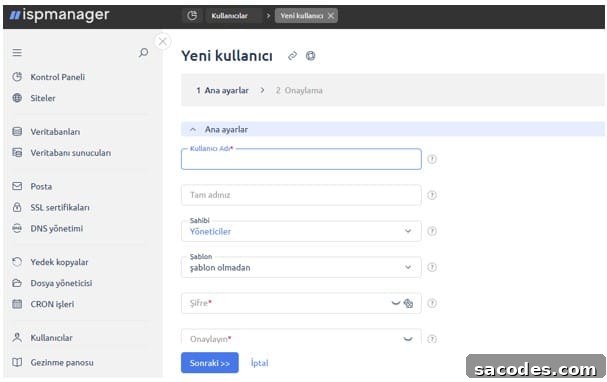
Finally, administrators can create an unlimited number of end users. To create a user:
→ Go to “Users” and click “Create user.”
→ Fill in the required fields for the account.
→ If you want ispmanager to automatically apply preset limits, access settings, and default values, choose a “Template.”
→ Enable backups if needed.
When creating users you can also:
→ Set limits for databases, domains, mailboxes, and other resources,
→ Grant access to features such as SSL, PHP handlers, and Node.js,
→ Configure automatic creation of website directories, FTP accounts, WWW aliases, and mail domains.
How to Create Multiple Users with Similar Permissions
If you need to provision multiple users with the same permissions — for example when selling hosting plans — use Templates to save time and keep settings consistent.
Example: Instead of manually setting permissions for each customer, create one template per hosting plan. Any change you make to a template is applied automatically to all users created from that template.
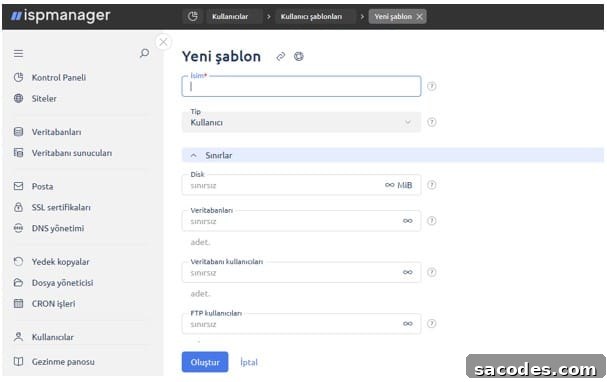
To create a template:
→ Go to “Users,” open “Templates,” and click “Create template.”
→ Configure the template’s settings just as you would when creating a user.
Using templates keeps user configurations standardized, reduces mistakes, and speeds up onboarding for new accounts.
How to Manage Access to Functions
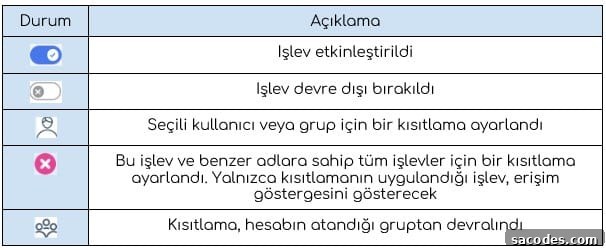
ispmanager lets you control which features and settings are available to administrators, resellers, and users. Access management is organized by role:
→ Administrators: Use Administrators → Permissions menu,
→ Resellers: Use Users → Permissions menu (note that reseller settings do not apply to the reseller account itself),
→ Users: Use Users → Permissions menu,
→ Groups: Use Functions access → “Create access group.”
To enable or disable a function, select it and choose “Enable” or “Disable” in the toolbar. To override a group’s permissions for a specific account, select the function, click “Permissions,” uncheck “Inherit,” and set “Allow access” or “Deny access.” You can always reset settings to defaults by choosing “Set to default.”
For more granular control ispmanager supports:
→ Sub-function restrictions (for example limiting PHP modes such as CGI or PHP-FPM),
→ Field and column controls (for instance disabling wildcard certificates in Let’s Encrypt),
→ Filters to limit access to specific data,
→ Policies that enforce broad permission rules across accounts.
For More Information
This overview outlines core concepts for user and permission management in ispmanager. Use templates and clear permission hierarchies to streamline administration and strengthen security. For specific configuration details and the most up-to-date feature list, consult the ispmanager documentation and your licensing information as provided in the panel.