
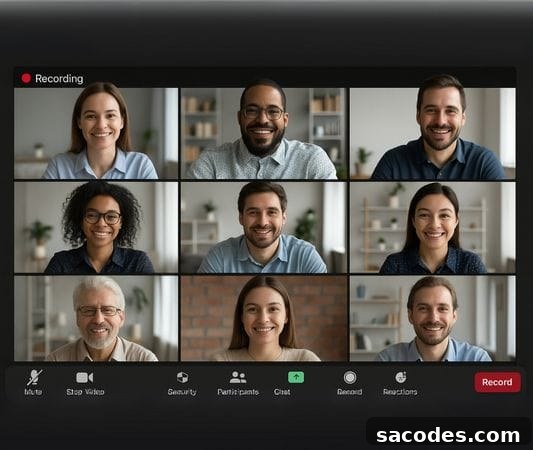
Zoom is one of the most widely used platforms for remote work, online education, seminars and meetings. One of its key features is the ability to record meetings and share those recordings with participants afterward. Many users, however, are not fully familiar with the recording options or how to share recordings securely. In this article, we explain step by step how to record meetings in Zoom and how to share those recordings safely.
Recording Options in Zoom
Zoom offers two primary recording methods, each suited to different needs and account types:
✓ Local Recording:
- The meeting recording is saved directly to your computer’s hard drive.
- This option is available for both free (Basic) and paid (Pro, Business, Enterprise) accounts.
- Recorded files are typically saved in MP4 (video), M4A (audio) and TXT (chat transcript) formats.
✓ Cloud Recording:
- Recordings are stored in Zoom’s cloud storage associated with your account.
- Cloud recording is available only to paid account holders.
- Recordings can be accessed from the Zoom web portal and shared via a link.
- Cloud recording offers optional automatic transcription for supported accounts.
How to Record a Zoom Meeting
From the Desktop App:
→ Open the Zoom app and start the meeting.
→ Click the “Record” button in the meeting controls at the bottom of the window.
→ If both local and cloud recording are available on your account, choose which type you want to use.
→ Once recording starts, a red recording icon appears in the upper-left corner of the meeting window.
→ To pause or stop the recording, use the “Pause/Stop Recording” controls.
→ When the meeting ends, the recording will be saved to the selected location.
From the Mobile App (iOS/Android):
→ Mobile devices support cloud recording only.
→ During the meeting, open the menu and select “More (…) > Record to Cloud” to start a cloud recording.
→ When the recording finishes, it uploads to your Zoom account cloud storage.
Where to Find Your Zoom Recordings
» Local Recordings:
On your computer, local recordings are typically saved in your Documents folder. Common default paths include:
Mac: /Users/YourUserName/Documents/Zoom
» Cloud Recordings:
- Sign in to the Zoom web portal.
- Go to the “Recordings” section.
- From there you can view, play back and download any cloud recordings stored on your account.
How to Share Zoom Recordings
Sharing Local Recordings
» Locate the recording file on your computer and share it via email or cloud storage services such as Google Drive, OneDrive or Dropbox.
» For very large files, consider using a file transfer service like WeTransfer or another large-file delivery tool.
Sharing Cloud Recordings
» Open the recording in the Zoom web portal.
» Click the “Share” option for the selected recording.
» Configure sharing settings before distributing the link. Typical options include:
- Link sharing: Anyone with the link can view the recording.
- Password protection: Require a password to access the recording for added security.
- Permission controls: Decide whether viewers can download the file, only watch it online, or add comments.
Tips for Securely Sharing Zoom Recordings
- Avoid public sharing: If recordings contain sensitive information, restrict access to relevant participants only.
- Use passwords: Protect cloud recordings with a password whenever appropriate.
- Limit retention: Do not keep recordings accessible longer than necessary; remove them when no longer needed.
- Control downloads: Choose whether viewers should be allowed to download recordings.
Common Use Cases for Zoom Recordings
- Education: Record lectures so students can review course material later.
- Business meetings: Share recordings with employees who could not attend live.
- Webinars: Provide on-demand access to event content after the live session.
- Archiving: Maintain recordings as official documentation or internal references for your organization.