
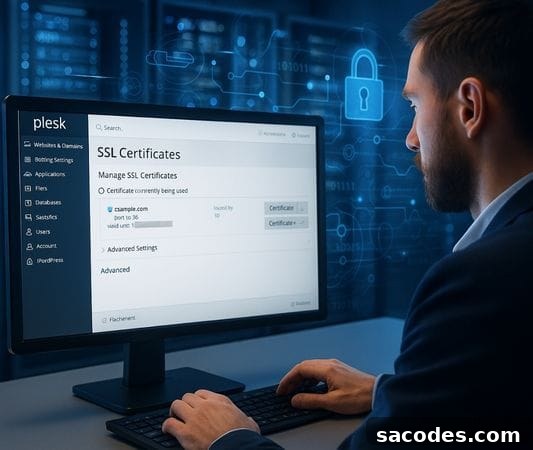
The secure, fast and reliable operation of websites depends not only on solid infrastructure but also on correct DNS configuration and effective SSL certificate management. For administrators handling multiple domains, these tasks can become complex when done manually. Plesk Panel simplifies the process by offering a central interface to manage everything from DNS records to SSL deployment.
In this article, we will walk through how to configure DNS settings in Plesk Panel, install and renew SSL certificates, and follow the best practices for secure connections and domain management.
What is DNS and Why Does It Matter?
DNS (Domain Name System) acts like the internet’s address book. When a user types a domain name, the DNS system translates that domain into an IP address so the browser can reach the correct server.
For example, when someone visits www.example.com, DNS directs that domain to the server’s IP address. Incorrect DNS settings can make a website unreachable or disrupt email delivery.
That’s why Plesk Panel DNS management is valuable: it provides both simple and advanced controls for domain administrators.
Managing DNS Settings in Plesk Panel
Plesk Panel allows you to edit DNS configurations through a clear, user-friendly interface. It creates a separate DNS zone file for each domain and stores records there.
What Is a DNS Zone?
A DNS zone is the configuration area that contains all DNS records for a domain. These records control website routing, email delivery, and security settings.
Accessing DNS Settings
-
Log in to Plesk (https://your-server-ip:8443).
-
From the left menu, go to the Websites & Domains tab.
-
Select your domain and click DNS Settings.
You will see a list of all DNS records associated with the domain.
DNS Record Types and What They Mean
Common DNS records you can manage in Plesk include:
-
A Record (Address Record): Points a domain to an IPv4 address.
-
AAAA Record: Routes to an IPv6 address.
-
CNAME (Canonical Name): Points one domain or subdomain to another domain.
-
MX (Mail Exchange): Directs email traffic to mail servers.
-
TXT Record: Text records used for verification and security (e.g., SPF, DKIM).
-
NS (Name Server): Specifies which DNS servers are authoritative for the domain.
Adding a New DNS Record
To add a new record, click the “Add Record” button, choose the record type (for example, “A Record”), enter the subdomain and IP address, and save with “OK.”
Plesk applies DNS changes automatically to the zone file and updates the system accordingly.
Bulk Management with DNS Templates
If you manage many domains, Plesk’s DNS Template feature lets you create a common DNS structure to apply across multiple domains.
With DNS templates you can:
-
Automatically add specific MX or TXT records to all domains.
-
Define SSL verification records in a single operation.
-
Manage DNS policies centrally.
Tip: Apply template changes to all existing zones using “Apply DNS Template Changes to All Zones.”
What Is an SSL Certificate and Why Do You Need One?
SSL (Secure Sockets Layer) encrypts data exchanged between a website and its visitors. Websites using HTTPS rely on SSL to protect user information and build trust.
SSL certificates:
-
Encrypt data traffic,
-
Verify site identity,
-
Provide SEO benefits,
-
Prevent browser security warnings.
Plesk Panel streamlines SSL management so secure connections can be set up in minutes for each site.
Installing SSL Certificates with Plesk Panel
Plesk supports two main SSL installation methods:
-
Automatic (Let’s Encrypt)
-
Manual certificate upload (from a Certificate Authority)
Automatic SSL with Let’s Encrypt
Plesk integrates with Let’s Encrypt to provide free, automated SSL certificates.
Installation Steps:
→ Go to “Websites & Domains.”
→ Select your domain.
→ Click “Let’s Encrypt.”
→ Enter your email address and check the required verification options.
→ Click “Install.”
Plesk performs domain validation and installs the SSL certificate automatically.
Renewal
Let’s Encrypt certificates expire every 90 days. Plesk handles renewal automatically in the background.
Manual SSL Certificate Installation
If you purchased a commercial SSL certificate (for example EV SSL or Wildcard SSL), you can upload it manually to Plesk.
Steps:
→ Open the relevant domain under “Websites & Domains.”
→ Go to “SSL/TLS Certificates.”
→ Click “Add SSL/TLS Certificate.”
→ Upload the files provided by the CA:
-
-
Certificate (CRT) file,
-
Private Key (KEY) file,
-
CA Bundle (if provided).
-
→ Save the certificate and assign it to the domain.
This approach is recommended for commercial or high-security projects that require specific certificate types.
SSL Certificate Management and Best Practices
Plesk Panel not only simplifies SSL setup but also offers automation features that make certificate management more secure.
Monitor SSL Status
Track certificate expiration dates under “Tools & Settings → SSL/TLS Certificates.” Plesk sends automatic alerts for certificates that are about to expire.
Enable HSTS
To strengthen HTTPS enforcement, enable HSTS (HTTP Strict Transport Security) in the domain’s Hosting Settings.
Redirect HTTP to HTTPS
When installing Let’s Encrypt, check “Redirect from HTTP to HTTPS” to ensure all traffic uses a secure connection.
Back Up Certificates
Use the Backup Manager to include SSL certificates in full system backups. This makes recovery simple if a certificate change causes issues.
DNS and SSL Integration: Secure Domain Validation
Domain validation is required when issuing SSL certificates and is commonly performed using DNS TXT records.
Plesk Panel integrates DNS record management with SSL provisioning to streamline this process.
-
Let’s Encrypt will automatically add the required TXT record to DNS.
-
For manual installations, the validation record is typically added as “_acme-challenge.”
Thanks to this integration, you can perform fully automated SSL setup without needing an additional DNS provider.
Benefits of Managing DNS and SSL in Plesk Panel
Plesk Panel offers several advantages for businesses and web administrators:
-
Time savings: Manage DNS and SSL from a single panel.
-
Reduced errors: A visual interface minimizes the risk of incorrect records.
-
Automatic renewal: SSL certificates renew without manual intervention.
-
High security: All operations occur over HTTPS with user authentication.
-
Advanced monitoring: Certificate and DNS changes are logged in system records.
To move your web infrastructure to a secure, professional level, consider using Plesk Panel DNS and SSL management services. Configured by expert technical teams, these systems improve both your website’s security and availability.