
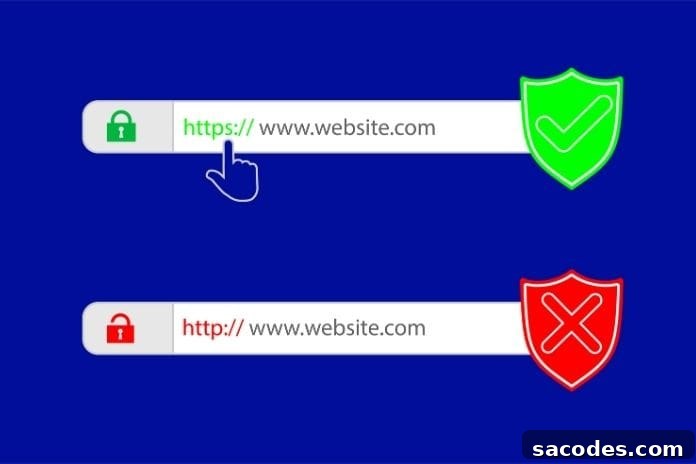
On websites, the green padlock icon indicates that the connection is secure and that an SSL (Secure Sockets Layer) certificate is in use. An SSL certificate encrypts data transmitted between the website and the visitor, creating a secure connection.
However, not all SSL certificates automatically trigger the green padlock. Browsers validate the SSL certificate and display the icon only when certain criteria are met. If a site lacks a trusted SSL certificate or is misconfigured, the browser may show warning icons or messages such as “Connection Not Secure.”
This article explains in detail why the green padlock appears on some sites and why it may be missing on others.
What Is the Green Padlock Icon and Why Does It Matter?
The green padlock icon shows that the browser has verified the site provides a secure connection via the SSL/TLS protocol. SSL certificates are essential to keep users’ personal information, payment details, and other sensitive data safe.
What the Green Padlock Indicates
- The website connection is secure.
- Data between the user and the server is transmitted encrypted.
- Provides extra protection against malicious attacks.
- Increases user trust for e-commerce sites and banks.
Which Browsers Show the Green Padlock?
- Google Chrome
- Mozilla Firefox
- Microsoft Edge
- Apple Safari
- Opera
Why the Green Padlock Appears
• A Trusted SSL Certificate Is Installed
For a site to display the green padlock, it must have a trusted SSL certificate. Certificates issued by recognized Certificate Authorities (CAs) are recognized by browsers and considered trustworthy.
• Use of HTTPS
HTTPS (Hypertext Transfer Protocol Secure) is the encrypted and secure version of HTTP. Browsers check whether a site uses HTTPS and will show the green padlock accordingly.
• Valid Certificate
SSL certificates are valid only for a set period. When a certificate expires, browsers may display a connection warning. The green padlock will appear only if the certificate is current and valid.
Why the Green Padlock Might Not Appear
Even when a website has an SSL certificate, the green padlock may still be missing in the browser. Common reasons include:
Misconfigured or Incomplete SSL Installation
- Files required during installation may be missing.
- The server may lack the full certificate chain.
- Intermediate certificates might be absent.
Solution:
- Verify the SSL certificate is installed completely and correctly.
- Use SSL testing tools (such as SSL Labs) to identify configuration issues.
Mixed Content Errors
A mixed content error occurs when a page loads over HTTPS but includes resources (CSS, JavaScript, images, etc.) via HTTP.
Because browsers cannot guarantee full security in these cases, they may withhold the green padlock.
Solution:
- Ensure all site content is loaded over HTTPS.
- Use browser developer tools (F12 → Console) to find and fix mixed content warnings.
Certificates from Untrusted Certificate Authorities
Certificates are trusted when issued by recognized certificate authorities. Unknown or self-signed certificates are not trusted by browsers and will not provide the green padlock.
Solution:
- Make sure your SSL certificate is issued by a reputable CA.
Use of Old or Weak Encryption
Older encryption algorithms and outdated SSL/TLS protocol versions are not secure. Browsers may flag connections as insecure and remove the green padlock.
Solution:
- Use TLS 1.2 or TLS 1.3.
- Switch to SHA-256 or stronger encryption algorithms.
Expired Certificate
SSL certificates typically have a validity period of one to two years. When the certificate expires, the browser labels the site as unsecure and the green padlock disappears.
Solution:
- Regularly check your certificate’s expiration date and renew it on time.
How to Check Whether an SSL Certificate Shows the Green Padlock
To diagnose why the green padlock is missing, use the following tools and methods:
- SSL Labs – SSL Test
- Why No Padlock
- SSL Shopper
You can also analyze the SSL connection using your browser’s developer tools (F12 → Security tab).
The green padlock indicates a website has a trusted SSL certificate and that all traffic is encrypted. If the icon is missing, possible causes include a certificate error, misconfiguration, or mixed content issues.
Key Points to Ensure the Green Padlock Appears:
✅ Use a valid and trusted SSL certificate
✅ Verify HTTPS is configured correctly
✅ Fix mixed content issues
✅ Regularly check your certificate expiration and renew on time
✅Use SSL certificates issued by recognized Certificate Authorities
A properly configured SSL certificate not only improves security but also offers SEO benefits.