
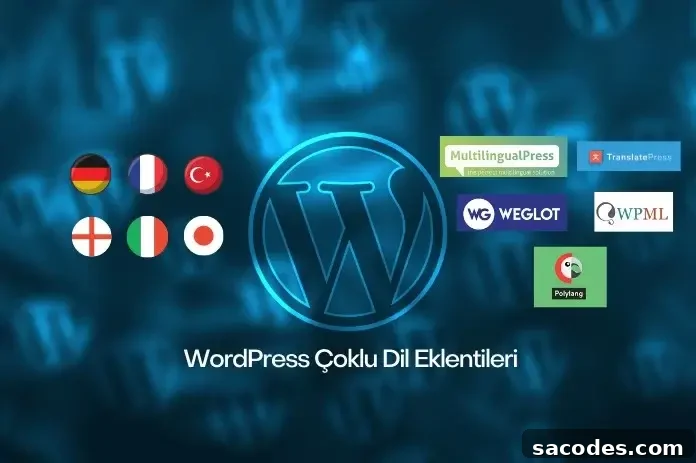
WordPress is one of the world’s most popular content management systems, powering millions of websites. Many sites need to reach audiences in multiple languages, so WordPress users often rely on multilingual and translation plugins. Offering multilingual support and using reliable translation plugins helps your site reach a broader audience. For businesses and individuals alike, adding multilingual support expands potential reach and improves engagement. In this article we overview the benefits and features of several popular multilingual plugins compatible with WordPress.
The Importance of Translation Plugins for Websites
Many businesses design websites for international customers. Because different countries speak different languages, providing multilingual support enables your site to connect with those audiences. Publishing content in multiple languages increases readership, improves search engine visibility, and attracts more organic traffic.
Translation plugins simplify the process of converting content from one language to another. Some plugins offer near-instant or automated translations, significantly speeding up localization work and reducing manual effort.
Multilingual support and translation plugins also improve user experience. Offering content in visitors’ preferred languages makes navigation easier and boosts engagement. It also facilitates communication between users who speak different languages and helps your site appeal to a global audience.
Multilingual Support and Translation Plugins
Below are detailed descriptions of some of the top WordPress multilingual plugins, highlighting their advantages and features.
Polylang
Polylang is a free multilingual plugin for WordPress that allows you to present your site in multiple languages with a set of user-friendly features.
- Multilanguage support: Enables your site to be available in multiple languages so visitors can read content in their native language.
- Easy to use: Polylang offers a straightforward interface. Installation and configuration are simple, and you can add new languages with a few clicks.
- SEO-friendly: Polylang structures translated content with language-specific URLs, which helps search engines index different language versions correctly.
- Compatibility: Works well with many other WordPress plugins, allowing you to extend your site’s functionality without conflicts.
- Extensible: Supports add-ons and integrations to expand features as your needs grow.
- Free: The core plugin is free, making it an excellent choice for sites on a budget.
How to Translate with Polylang
Translating with Polylang is straightforward. Follow these steps:
- Install and activate Polylang; a Polylang menu will appear in your WordPress admin.
- Under the “Languages” tab, add the languages you want to support by using “Add Language” or editing existing ones. Each added language creates the necessary language files.
- Open any page or post; Polylang displays language flags beside content items. Click a flag to create or edit a translation for that page or post.
- Use the translation editor to manage translations directly from the WordPress admin if you prefer an integrated workflow.
- Polylang also supports translating dynamic elements like widgets, menus, and other theme components so your entire site can be localized.
WPML
 WPML (WordPress Multilingual Plugin) is a comprehensive premium solution for building multilingual WordPress sites.
- SEO-friendly URLs: Creates language-specific URLs to boost SEO and help search engines recognize each language version.
- Automatic language detection: Can detect a visitor’s language and present the preferred language automatically, improving the user experience.
- Translation management: Offers tools to manage translations from the WordPress admin, including a translation editor for faster workflows.
- WooCommerce support: Fully integrates with WooCommerce so product catalogs can be translated for international e-commerce.
- Multisite support: Facilitates sharing and managing translations across multiple WordPress sites.
- Support: Provides customer support for resolving translation-related issues.
- Multilanguage capabilities: Lets you publish and switch between multiple language versions of your site easily.
How to Translate with WPML
- Install and activate WPML.
- Select the content you want to translate—for example, go to “Pages” in the admin and choose a page to translate.
- Under the page options select “Translate.” WPML supports automatic machine translation, manual human translation, and managed translation services.
- Use WPML’s translation editor to refine and finalize translations, switching between languages as needed.
- Set up SEO-friendly URLs for each language in WPML settings after completing translations.
- Manage all translations from the “Translations” section in the WordPress admin to edit, add, or remove translations.
TranslatePress
TranslatePress is a user-friendly multilingual plugin that enables visual translation directly from your site’s front end.
- Live preview: See changes immediately as you translate your site.
- Intuitive interface: Translate content directly from the front end by selecting the text you want to translate.
- Multilanguage support: The free version supports one additional language; premium versions allow unlimited languages.
- SEO-friendly: Generates proper URL structures for different languages.
- Visual editor: Lets you translate content visually from the site’s front end.
- Compatibility: Works with many popular WordPress plugins so translations remain consistent across integrations.
- Customization options: Includes features for custom CSS/HTML, dynamic strings, and special page translations.
- Automatic and manual translation: Supports Google Translate for automatic translations as well as manual editing.
How to Translate with TranslatePress
- Install and activate TranslatePress.
- Go to the “Translate” section in your WordPress admin to configure languages.
- Choose your languages; the free version supports one extra language while premium plans allow more.
- Open the page you want to translate and click the “Translate Page” button to launch the visual editor.
- Translate all visible text directly on the page using the visual editor and save your changes.
- TranslatePress will generate language-specific URLs so your site remains SEO-friendly.
Weglot
Weglot is a translation plugin that offers fast setup and automatic translations with a centralized management interface.
- Simple setup: Weglot installs quickly and can be configured in minutes.
- Integrated translation interface: Provides a central interface to review and edit translations.
- Dynamic translation: Automatically translates site content and maintains translations across pages.
- SEO-friendly: Creates separate URLs for each language to improve search engine indexing.
- Translation memory: Stores previously translated strings to speed up future translations.
- Easy integration: Works with many platforms and services, including WordPress, Shopify, and others.
How to Translate with Weglot
- Install and activate Weglot in WordPress, create a Weglot account, and obtain your API key.
- Go to settings, select your site’s default and target languages; Weglot will scan your content and begin automatic translation. You can also mark pages or sections for manual translation as needed.
- If you choose Weglot’s paid translation service, configure your account preferences and payment details.
- Weglot’s automatic translations may need proofreading; use the Weglot editor to correct grammar or style issues.
MultilingualPress
MultilingualPress uses WordPress multisite to create separate sites for each language, offering strong separation and control for multilingual projects.
- Multisite support: Leverages WordPress multisite to create a dedicated site per language, giving full control over each language version.
- SEO-friendly: Each language site gets its own URL structure, helping search engines index language-specific content.
- Flexible language options: Translate any content and choose from multiple language configurations.
- Customization: Configure menus, widgets, sidebars, and other elements independently per language.
- Integration: Works alongside popular plugins such as WooCommerce and Yoast SEO.
- User-friendly: Designed for easy setup and management of translations across a multisite network.
How to Translate with MultilingualPress
Translating with MultilingualPress follows a multisite approach. Steps include:
- Install and activate MultilingualPress on your WordPress multisite network.
- From the admin “Languages” page, add the languages you plan to support.
- Select the page or post to translate, then choose the target language in the “Language” section.
- Use the “Duplicate” button to create a new site-specific copy, then translate content on the new site and save changes.
- Use the “Language Switcher” widget to allow visitors to switch between language sites.
To choose the best multilingual plugin for your project, compare features and match them to your needs—consider SEO handling, translation workflow, e-commerce compatibility, and whether you prefer automatic or manual translation. Finally, pick an appropriate WordPress hosting plan and install your chosen language plugin to make your site multilingual.