
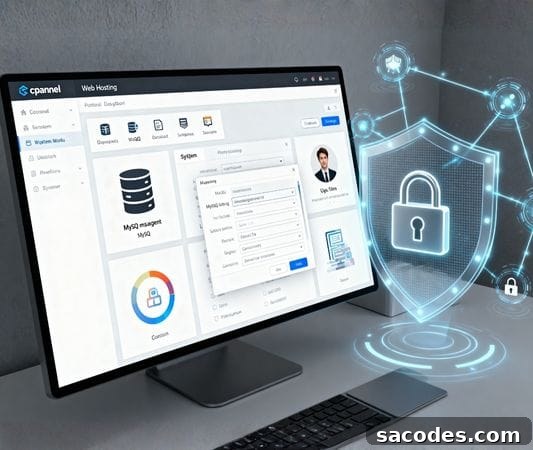
One of the most important components running behind a website is the database. Especially for dynamic sites, applications, or e‑commerce platforms, incorrectly managed database user permissions can create serious security and performance risks. For that reason, user-friendly control panels like cPanel provide advanced tools to effectively manage database users and their privileges.
In this article, we will explain step by step how to manage database user permissions in cPanel, which privileges are appropriate for which scenarios, and best security practices.
What Is cPanel and Why Is It Important for Database Management?
cPanel is one of the world’s most widely used control panels designed to simplify web hosting management.
From website files and email accounts to security settings and MySQL database management, cPanel lets you handle these processes through a visual interface.
The most important database management component in cPanel is the MySQL Databases module. In this section you can:
-
Create new databases,
-
Add or remove users,
-
Define user permissions (privileges),
-
Perform data operations via phpMyAdmin.
This setup allows both small websites and enterprise projects to manage database access securely and efficiently.
What Is a Database User?
A database user is an identity that has the right to connect to a database and perform operations on it.
Each user is defined by a specific username and password.
However, not every user can perform every action.
The operations a user can carry out are determined by their assigned permissions or privileges.
Typical privileges include:
-
Data read (SELECT)
-
Data insert (INSERT)
-
Data update (UPDATE)
-
Data delete (DELETE)
-
Structural changes such as ALTER or DROP
cPanel provides a visual interface to manage these permissions easily.
Steps to Manage Database User Permissions in cPanel
The following steps cover creating a database, adding users, assigning permissions, and modifying privileges:
→ Log in to cPanel
Access your hosting account’s cPanel interface through your browser, for example: https://yourdomain.com:2083
Sign in with your username and password.
→ Open the MySQL Databases Module
On the cPanel home page, click the “Databases” section and then the MySQL® Databases icon.
This area is the central hub for creating databases, managing users, and assigning privileges.
→ Create a New Database (Optional)
If you don’t have a database yet:
-
Enter a name in the “Create New Database” field.
-
Click the “Create Database” button.
The system will create the database in a few seconds.
→ Create a Database User
On the same page, go to the “MySQL Users → Add New User” section.
-
Username: Enter the username.
-
Password: Choose a strong password (you can use a password generator).
Click the “Create User” button. The user will now exist in the system.
→ Assign the User to a Database
To link a user to a database, find the “Add User To Database” section.
-
Select the user from the dropdown menu.
-
Select the database they should access.
-
Click the “Add” button.
After this step, the system will direct you to the “Manage User Privileges” screen.
→ Set User Privileges
On the “Manage User Privileges” page, you can select the privileges the user will have on the database.
Common privilege types include:
| Privilege | Description |
|---|---|
| SELECT | Allows reading and viewing data stored in the database. |
| INSERT | Allows inserting new data. |
| UPDATE | Allows updating existing records. |
| DELETE | Allows deleting data. |
| CREATE | Creates new tables or database objects. |
| DROP | Deletes tables or objects. |
| ALTER | Makes structural changes to tables (e.g., add columns). |
| INDEX | Allows creating or dropping indexes. |
| GRANT OPTION | Permits granting privileges to other users. |
If you want to assign every available privilege, check the “ALL PRIVILEGES” box.
However, this should be reserved for developers or administrators for security reasons.
After making your selections, click the “Make Changes” button to save the settings.
→ Additional Checks via phpMyAdmin
In some cases you can also view or modify user privileges directly through phpMyAdmin:
-
Open the phpMyAdmin tool from the cPanel home page.
-
Select the relevant database from the left menu.
-
The “Privileges” tab shows the list of users.
-
From there you can review, edit, or remove user privileges.
Best Security Practices
Database user permissions are not only about functionality but also about security management.
The following practices are recommended for more secure database management in cPanel:
° Apply the Principle of Least Privilege
Grant users only the privileges they need.
For example, do not give INSERT or DELETE privileges to a user who only needs read access.
° Create Dedicated Accounts for Administrative Roles
Instead of performing all operations with a single general account, create separate accounts for different roles:
-
Admin User: All privileges enabled.
-
Application User: Only CRUD (Create, Read, Update, Delete) privileges.
-
Read‑Only User: SELECT privileges only.
This approach improves accountability and reduces the risk of accidental changes.
° Rotate Passwords Regularly
cPanel supports strong password policies.
Change user passwords periodically and avoid reusing the same password across multiple accounts.
° Restrict Remote Access
By default, accepting MySQL connections only from localhost is the safest option.
If remote access is required, enforce IP‑based access controls.
° Review User Privileges Periodically
Over time, unused accounts or excessive privileges can accumulate.
Review the “MySQL Users” list monthly and remove accounts that are no longer needed.
Benefits of Permission Management in cPanel for Businesses
Properly managing database user permissions in cPanel not only increases security but also supports system stability and performance.
Key Benefits:
-
Prevents unauthorized access.
-
Reduces the risk of accidental data deletion or modification.
-
Simplifies maintenance processes.
-
Provides data security at the application level.
This structure is particularly important for teams with multiple developers, as it supports responsibility sharing and access control.
Managing database user permissions in cPanel is a decisive factor for a website’s security and performance. Granting each user only the rights they need, conducting regular audits, and enforcing strong password policies help prevent both data loss and security breaches.
A well‑configured permission system not only improves security but also increases database efficiency. Whether you are a developer, administrator, or site owner, understanding these core principles is essential.