
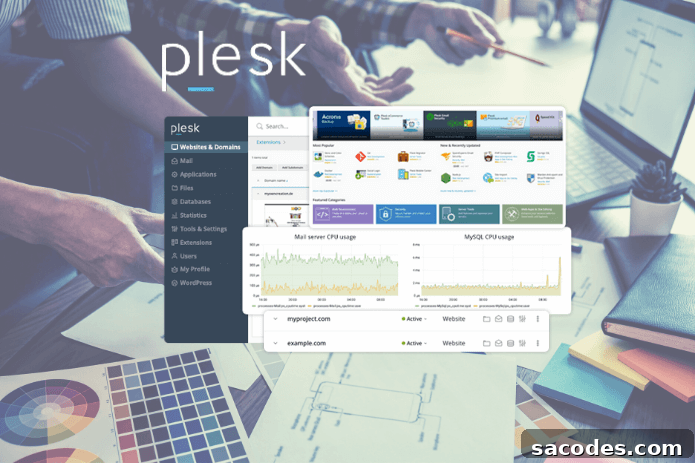
Plesk Panel users all want to know how to monitor traffic and disk usage to optimize website performance and resource consumption. Traffic and disk usage directly affect server responsiveness and stability, so accurate monitoring and timely intervention are crucial. How do you monitor traffic and disk usage in Plesk Panel, and which metrics should you pay attention to?
The Importance of Monitoring Traffic and Disk Usage
First, it helps to understand why monitoring traffic and disk usage matters. Website traffic represents the number of visitors and the amount of data transferred to and from your server. Unmanaged high traffic can slow your site, degrade user experience, or in extreme cases cause downtime. Monitoring allows you to identify traffic spikes, abusive behavior, or bottlenecks early and respond before they affect availability.
Disk usage shows how much storage your files, databases, and account data occupy. When disk space runs low, you may be unable to add new content, store backups, or write to databases, which can break site functionality. Regularly checking disk usage lets you free space or upgrade storage proactively to avoid interruptions.
How to Monitor Traffic in Plesk Panel
Log in to Plesk Panel: Start by signing in with your Plesk credentials. Your hosting provider usually supplies the login URL.
Open Websites & Domains: From the dashboard, go to the “Websites & Domains” section next to the domain you want to manage. This area provides quick access to site-specific settings and reports.
Access Traffic Reports: Plesk automatically generates traffic reports for each domain. Visit the “Reports” or “Statistics” area to review inbound and outbound data. Reports typically show daily, weekly, and monthly traffic trends, including visits, page views, and uploaded or downloaded file volumes. These metrics help you spot unusual activity, heavy resource consumers, and peak periods.
Check Bandwidth Limits: Monitoring ensures you don’t exceed bandwidth limits. If you hit your quota, your site can slow or become unavailable. Plesk shows how much of your bandwidth allowance is used so you can plan upgrades or implement throttling measures if needed.
How to Monitor Disk Usage in Plesk Panel
Monitoring disk usage is especially important for sites with many files or large media libraries. Plesk Panel reports per-domain disk usage so you can see which accounts are consuming the most space.
Check Disk Usage by Domain: In the “Websites & Domains” section, select the domain you want to inspect and view detailed disk usage reports. These reports break down storage by folders and file types, helping you identify large directories and unused files you can remove to free space.
Review Database Usage: Databases can occupy significant storage on dynamic sites. Monitor database usage from the “Databases” tab to see the size of each database. Periodic database maintenance—removing obsolete records, optimizing tables, or archiving old data—reduces storage needs and improves performance.
Manage Email Storage: Email accounts hosted in Plesk also consume disk space. Users with many mailboxes should routinely clear old or large messages. Plesk shows how much space each mailbox uses, enabling targeted cleanup to reclaim disk capacity.
Understanding Disk and Traffic Reports
Plesk’s reports include key metrics such as daily traffic, monthly traffic, file sizes, and database storage. Regular review of these indicators helps you understand resource patterns and plan capacity. For high-traffic sites, tracking real-time changes allows quick reactions to sudden demand, while long-term trends guide scaling and budgeting decisions.
Tips to Optimize Traffic and Disk Usage
Remove Unnecessary Files: Periodically delete unused backups, outdated media, and temporary files to free disk space. Clearing obsolete content prevents wasted storage and reduces backup sizes.
Compress Images and Videos: Media typically consumes the most disk space. Optimizing images and compressing videos lowers storage needs and speeds up page load times, which also reduces bandwidth usage.
Clean Up Databases: Schedule regular database maintenance to remove obsolete rows—such as old orders, expired sessions, or spam comments—and to optimize tables. Smaller databases mean faster queries and reduced storage consumption.
Use Caching: Server-side caching is an effective way to reduce traffic and resource load. Implement cache plugins or reverse proxies so repeat visitors request less data from the server, lowering both bandwidth and CPU usage.
Automate Plesk Reports
Enable automated reporting in Plesk to receive scheduled traffic and disk usage summaries. Automated reports deliver consistent visibility into resource consumption without manual checks, which is especially useful for busy administrators and site owners who need to monitor multiple domains.
Monitor Regularly to Prevent Issues
Monitoring traffic and disk usage in Plesk Panel is essential to maintain site performance and use resources efficiently. Accurate, ongoing analysis helps keep your site available under load, prevents unexpected outages, and enables you to optimize hosting costs. By tracking disk and traffic metrics regularly and taking corrective actions—such as cleaning files, optimizing media and databases, enabling caching, or upgrading plans—you can ensure reliable performance and better user experience.