

OpenDNS Resolver and How to Disable It
WARNING: Even if recursive DNS is disabled, if root hints or forwarder entries remain configured, the server can still be used as a source for DNS amplification attacks. Disabling recursion alone is not enough. Be sure to remove root hints and forwarders as described below.
What is an Open DNS Resolver?
An Open Resolver is a DNS server that responds to recursive queries from arbitrary Internet sources. In other words, it will accept and resolve queries from any external client.
Why should it be disabled?
If left open, your server can be abused in DDoS reflection and amplification attacks without your knowledge. This can saturate your network, severely degrade performance, and lead to unexpectedly high traffic costs.
How can I check whether my server is an Open Resolver?
Use the dig command from a Linux system to test whether your server answers recursive queries from arbitrary clients. The examples below assume you run the commands from a terminal; in some web-based test tools you may only need to enter the IP address.
Example test command: dig cert-bund.de @77.92.152.2
If the response shows status: REFUSED or SERVFAIL, recursion is not available to external clients and your server is not acting as an open resolver.
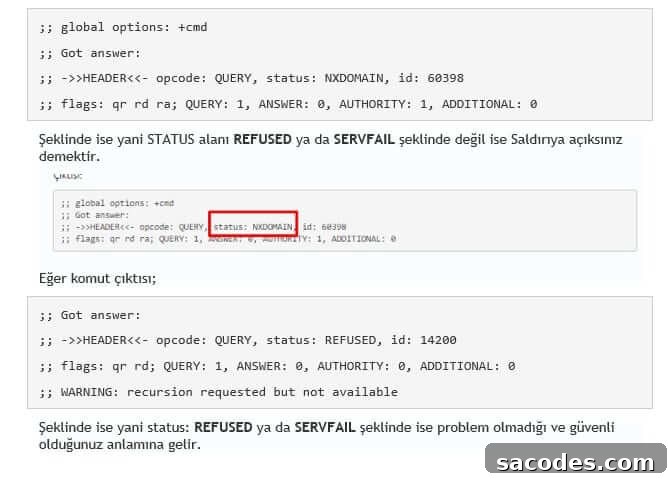
When recursion is enabled, your server may participate in DNS amplification attacks and respond to malicious reflection requests, which can overload the network and impact other services.
Important: If you are not comfortable administering a DNS server, ask a qualified administrator or support team to perform these changes. You can provide your server credentials to your support team to request disabling DNS recursion.
Before proceeding, identify which DNS software is running on your server. On Windows it is often Microsoft DNS or BIND, while on Linux BIND is commonly used. Below are instructions for each type.
1) Disable DNS recursion on Microsoft DNS
Open the DNS Manager (search for “DNS” in the Start menu). Right-click the DNS server name and choose Properties.
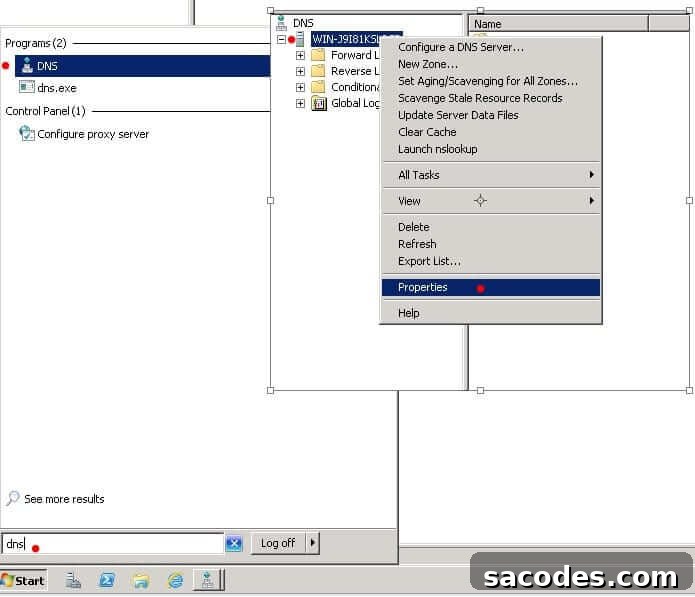
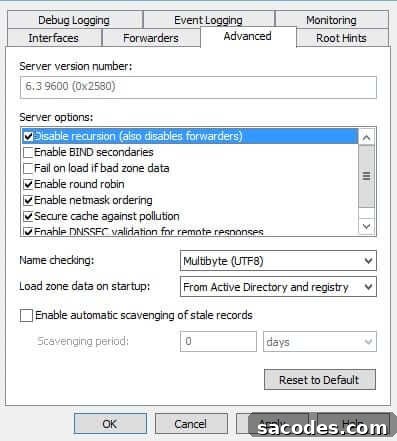
On the Properties dialog, select the Advanced tab and check Disable recursion.
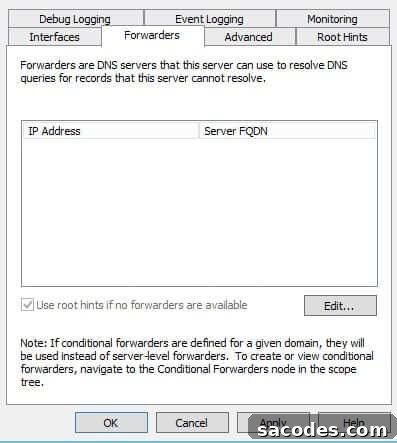
Ensure the Forwarders list is empty.
Remove all entries from the Root Hints list as well. The Root Hints should be cleared so the server will not forward or resolve external recursive queries.
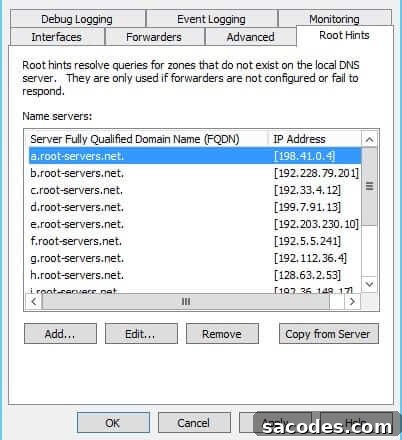
After clearing Root Hints and forwarders and disabling recursion, restart the DNS service.
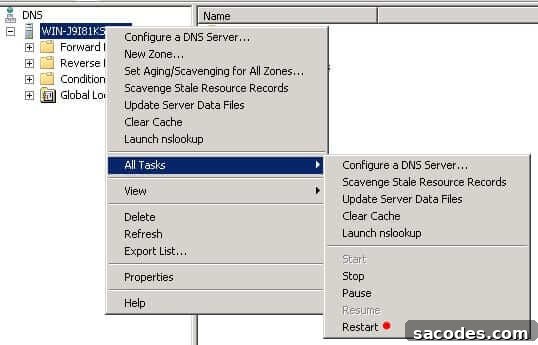
Once complete, retest to confirm recursion is disabled (testing instructions are below).
2) Disable recursion for BIND on Windows (Plesk)
Locate the BIND configuration folder; the named.user.conf file is typically found in the server’s BIND configuration directory.
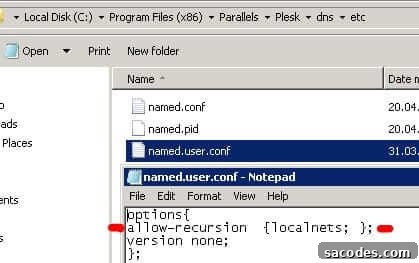
Open named.user.conf and remove or comment out lines such as allow-recursion { … }; or recursion yes;. Then update the options block as follows:
options{
allow-transfer { none; };
additional-from-cache no;
recursion no;
};
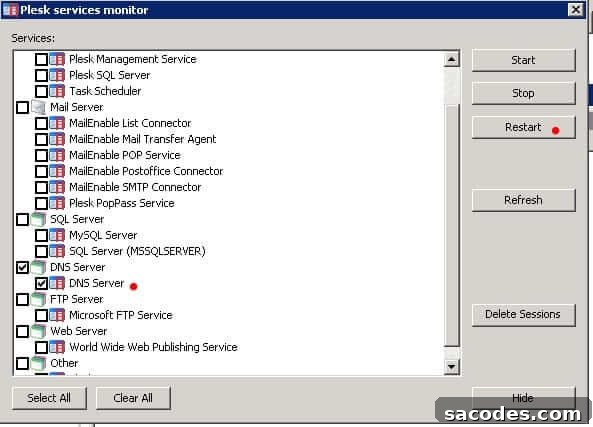
After saving the change, restart the DNS service and verify recursion is disabled.
3) Disable recursion for BIND on Linux
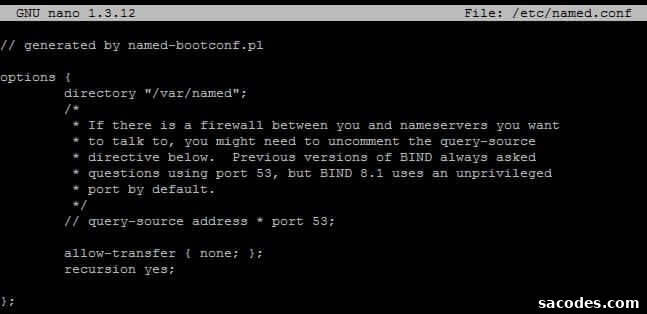
Edit the named.conf file with your preferred editor:
nano -w /etc/named.conf
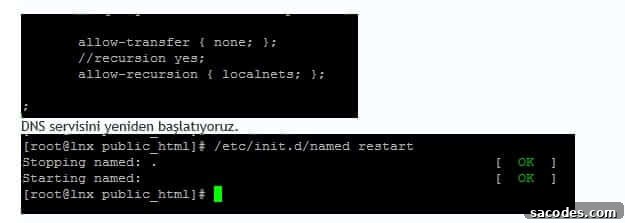
If you see recursion yes or allow-recursion statements, remove them or comment them out, then add the following options:
allow-transfer { none; };
additional-from-cache no;
recursion no;
Save the file and restart the BIND/named service.
How to test whether DNS recursion is disabled
You can use online test pages that perform a DIG query against your server’s IP, or run dig locally from a Linux terminal. For example, query a domain against your server IP and interpret the response:
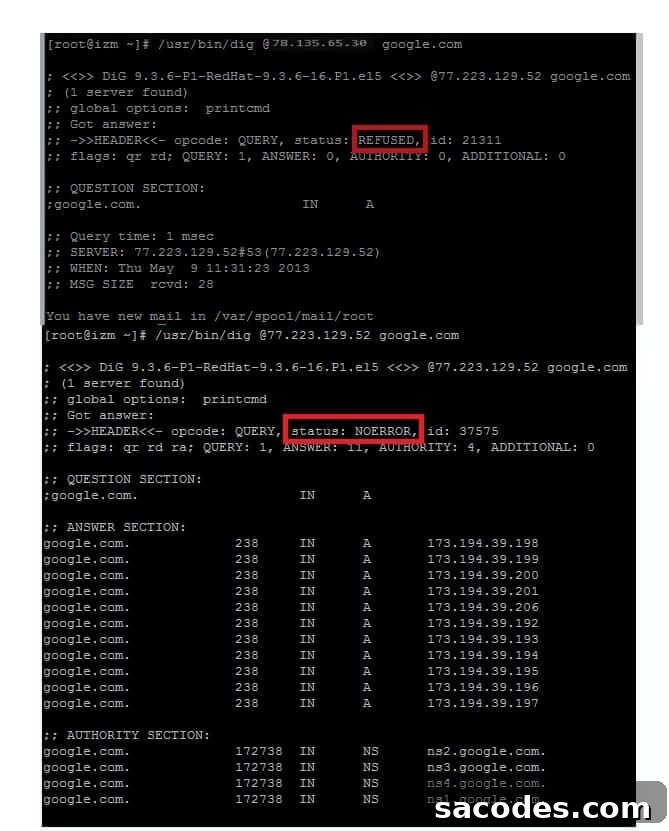
If the response status is REFUSED or SERVFAIL, recursion is disabled and the server is not acting as an open resolver. If the status is NOERROR (and the server returns an answer for a recursive query), recursion is enabled and must be disabled immediately.
Online test tool example: https://ping.sh.com.tr/dns.php (enter your server IP to run a DIG test).

Example dig command to test from a Linux server:
dig @78.135.65.30 google.com
Interpret the output carefully: REFUSED or SERVFAIL indicates recursion is blocked; NOERROR indicates recursion is allowed and should be turned off.
Following these steps will reduce the risk that your DNS server is abused for amplification or reflection attacks. After applying the changes, always verify the server’s behavior with a dig test to confirm recursion is fully disabled and forwarders/root hints are cleared.