WordPress-based websites are generally user-friendly, but technical issues can still occur. One common problem is the 503 Service Unavailable error, which usually means the server is temporarily unable to handle the request. This guide provides a clear, step-by-step approach to identifying and resolving the 503 error on your WordPress site.
Check Your Plugins
One of the most common causes of a 503 Service Unavailable error is a faulty or incompatible WordPress plugin. Plugins extend site functionality, but a single problematic plugin can interfere with normal operation and trigger a 503 response.
To troubleshoot plugins, start by disabling them all and then re-enable them one by one to find the culprit:
- Log in to your WordPress admin dashboard.
- Navigate to the “Plugins” menu on the left.
- Select all plugins and choose “Deactivate.”
If the site returns to normal, a plugin is likely responsible. Reactivate plugins individually and check the site after each activation. When the 503 error reappears, you’ve identified the offending plugin. Deactivate or remove it and report the issue to the plugin developer, or replace it with an alternative if necessary.
If you cannot access the admin panel, disable plugins via FTP or your hosting file manager. Connect to your FTP account and go to /wp-content/. Rename the plugins folder to something like plugins_old. This will deactivate all plugins. If this fixes the issue, move plugins back to the original folder one at a time until you find the problematic plugin, then delete or deactivate it.
Check Your Theme
The active theme can also cause a 503 Service Unavailable error if it contains incompatible or broken code. To test whether the theme is the issue, switch to a different theme:
- Log in to your WordPress admin dashboard.
- Go to “Appearance” > “Themes.”
- Activate a different theme. If none are available, activate a default WordPress theme such as Twenty Twenty-One or Twenty Twenty-Two.
If the site works with a different theme, the original theme is likely the cause. Contact the theme developer for support, or consider switching to a supported, updated theme if the developer cannot resolve the issue.
If you cannot access the admin panel, use FTP: navigate to /wp-content/themes/, find the active theme’s folder, and rename it. WordPress will fall back to a default theme automatically. If the site returns to normal, troubleshoot or replace the problematic theme.
Review Increased Server Resource Usage
A 503 error can result from excessive traffic or resource usage that exceeds your hosting plan limits. When the server cannot process incoming requests due to high CPU, memory, or concurrent connection use, it may return a 503.
Check resource and traffic statistics in your hosting control panel. Many hosts provide sections like “Resource Usage,” “CPU Usage,” or “Concurrent Connections” that show spikes or sustained high usage. If you observe unusually high values, consider the following remedies:
- Upgrade to a stronger hosting plan: If your site consistently receives heavy traffic, a higher-tier plan, VPS, or managed WordPress hosting can provide more resources.
- Use a caching plugin: Caching reduces server load and speeds up page responses by serving static copies of pages to visitors.
- Use a Content Delivery Network (CDN): A CDN distributes content across multiple servers worldwide and lowers the load on your origin server—particularly useful for international audiences.
- Optimize your site: Remove unused plugins, optimize images, and clean up the database to reduce resource demands.
Check Your .htaccess File
The .htaccess file in your WordPress root directory controls server behavior such as redirects and rewrites. A corrupted or misconfigured .htaccess can cause server errors, including 503 responses. To troubleshoot:
- Access your site via FTP or your hosting file manager and locate the
.htaccessfile in the site root. - Rename it to something like
.htaccess_oldto disable it temporarily. - Reload your site. If it works, the .htaccess file was the source of the problem.
To regenerate a clean .htaccess, log in to WordPress and go to “Settings” > “Permalinks,” then click “Save Changes.” WordPress will create a fresh .htaccess file with default rules. If the issue persists, continue investigating other possible causes.
Increase Your PHP Limits
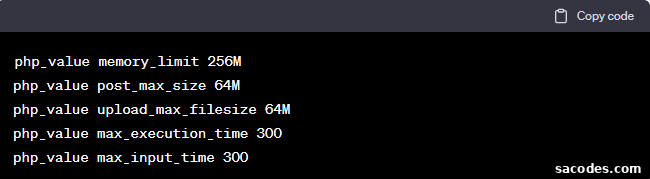
Low PHP memory limits or strict execution settings can also trigger a 503 Service Unavailable error, especially on sites with many plugins or heavy content. You can attempt to increase PHP memory limits using one of these methods:
- Edit wp-config.php: Via FTP or your hosting file manager, open
wp-config.phpand add:define('WP_MEMORY_LIMIT', '256M');This raises the PHP memory limit for WordPress. Adjust the value as needed based on your hosting restrictions.
- Edit php.ini: If available, edit your site’s
php.iniand add or update:memory_limit = 256MNote that some shared hosts do not permit php.ini changes; check host documentation or support.
- Edit .htaccess: If your host allows, add this line to
.htaccess:php_value memory_limit 256MUse with caution—incorrect .htaccess directives can cause server errors on some environments.
After raising limits, test your site. If the 503 error continues, the cause may lie elsewhere and further troubleshooting will be needed.
Conclusion: The 503 Service Unavailable error is often temporary and can usually be resolved by following the steps above. If these methods do not fix the issue, contact your hosting provider or consult a WordPress professional. Always keep regular backups of your site so you can restore a working version if needed.
We hope this guide helps you understand the causes of the 503 Service Unavailable error and provides practical steps to resolve it. Good luck troubleshooting!